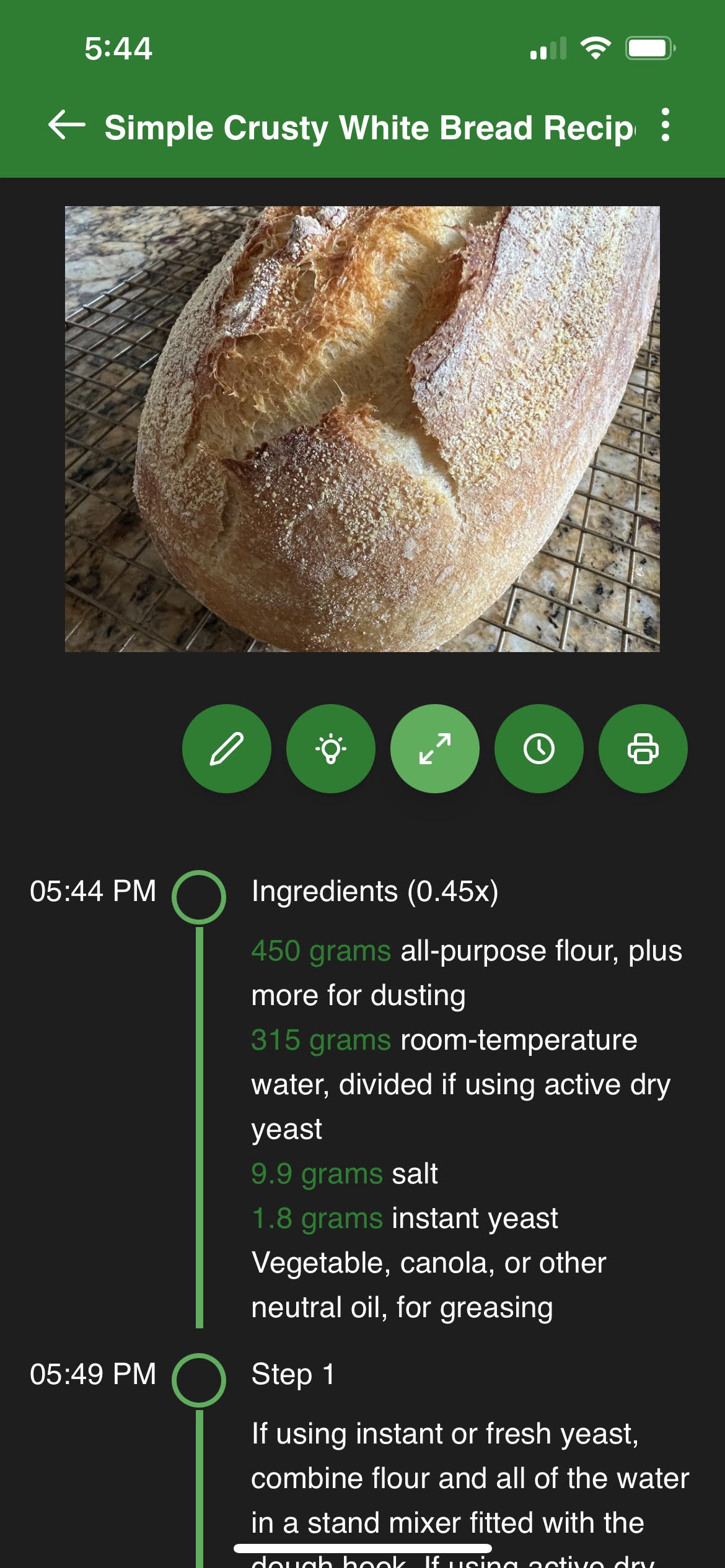
View a recipe
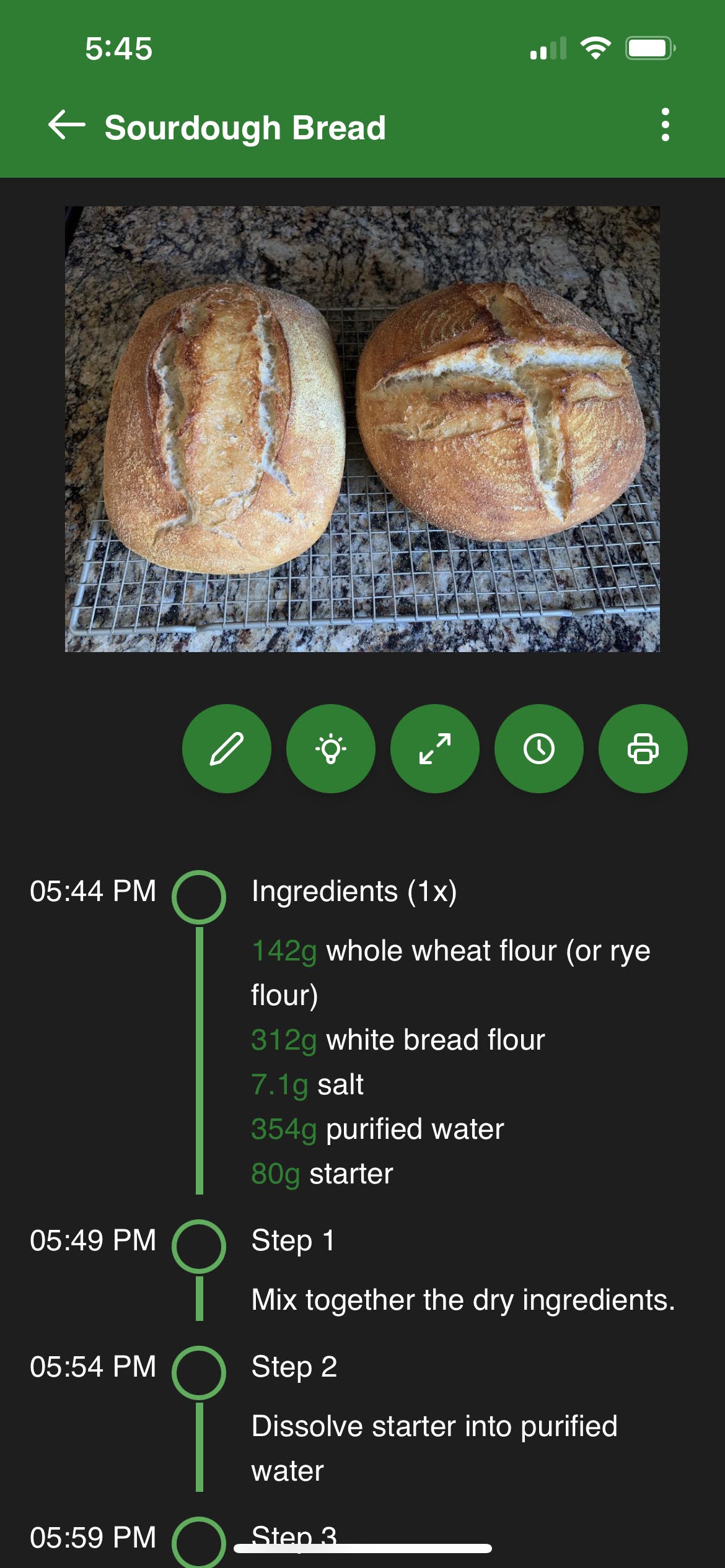
Sharp Cooking displays recipes using a timeline style which helps you know exactly when to start or continue cooking your recipe and breaks it down nicely in easy to consume bits.
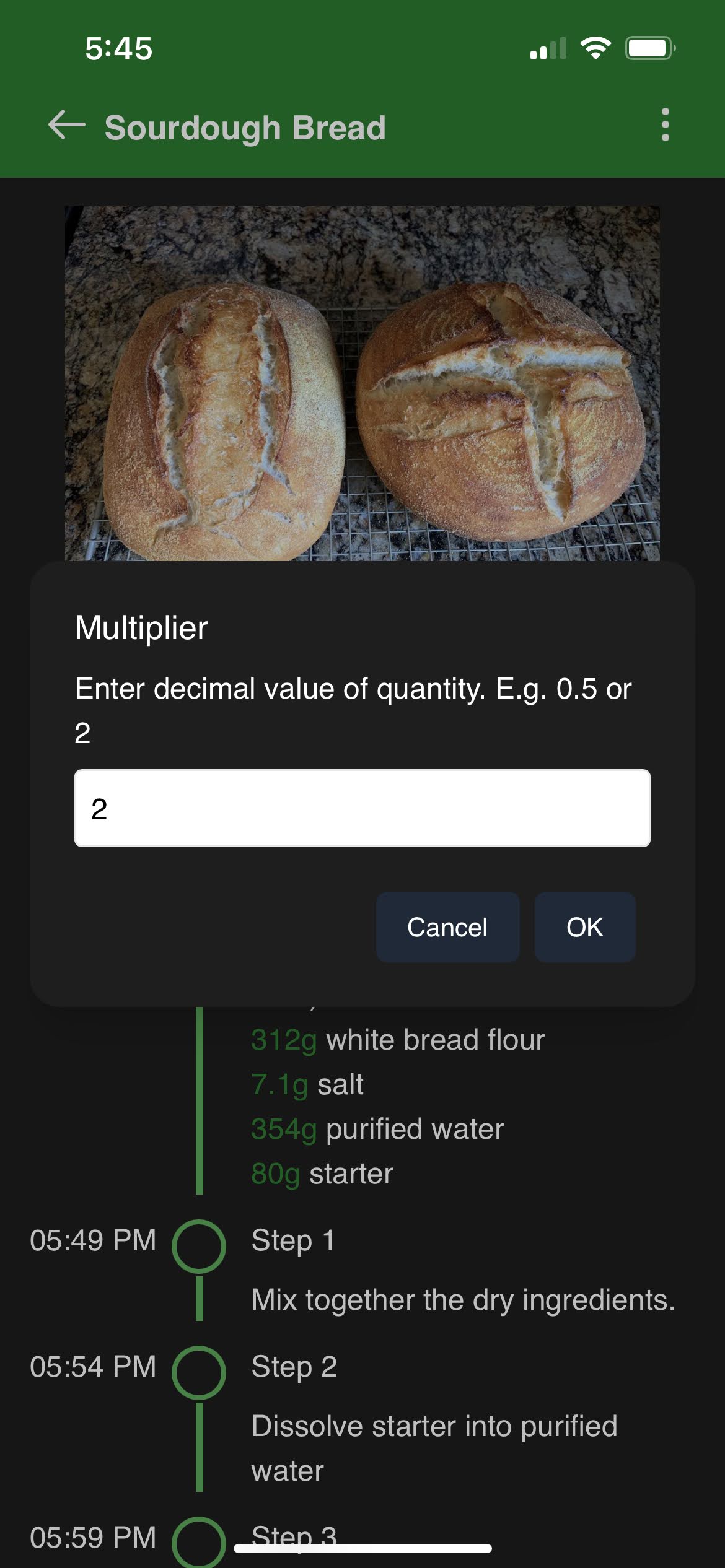
Use the multiplier feature when you want to cook more or less of a recipe. For instance, if you want half the servings, use the multiplier 0.5. If you want double the servings, use 2. The current multiplier will show beside the Ingredients label.
TipSome people like decimals like 1.5 and other people prefer fractions like 1 1/2. Regardless of preference, Sharp Cooking can show your recipe ingredient quantities just right. Just tap this feature in the Settings page to toggle between the two modes.
CautionThe multiplier only applies to ingredients so be careful with instructions where time-bound steps may need adjustments.
 ➡️
➡️
 ➡️
➡️
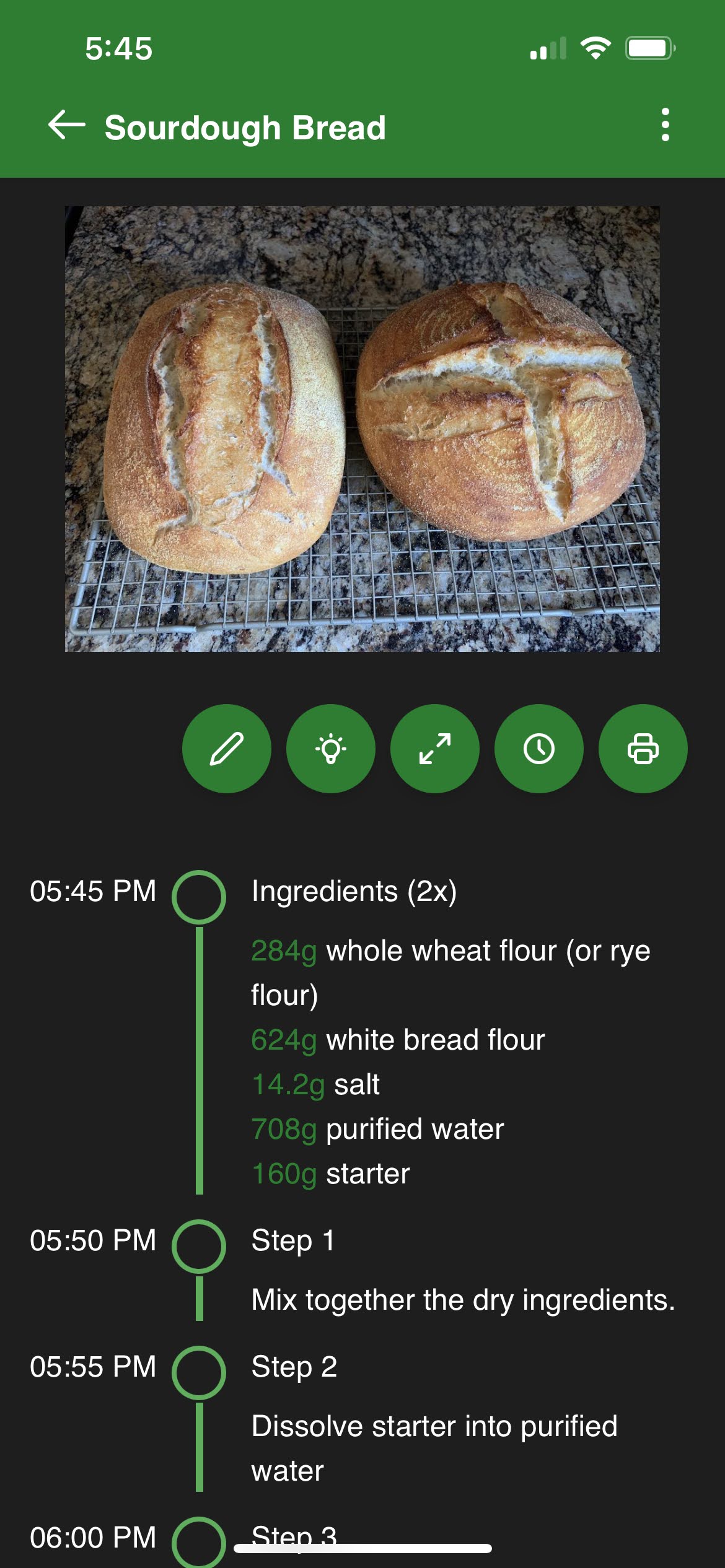
Sharp Cooking automatically calculates alternative unit of measure conversions for each ingredient. For example, an ingredient listed as 300g can also be shown as 0.66 lb, 0.3 kg, or 10.58 oz.
To see the alternatives, tap any ingredient in the list. A popup will appear showing the quantity in all supported units. The multiplier is applied to all alternative quantities as well.
TipThis works best when ingredients start with a recognised quantity and unit. See the Create or update a recipe page for tips on writing well-structured ingredients.
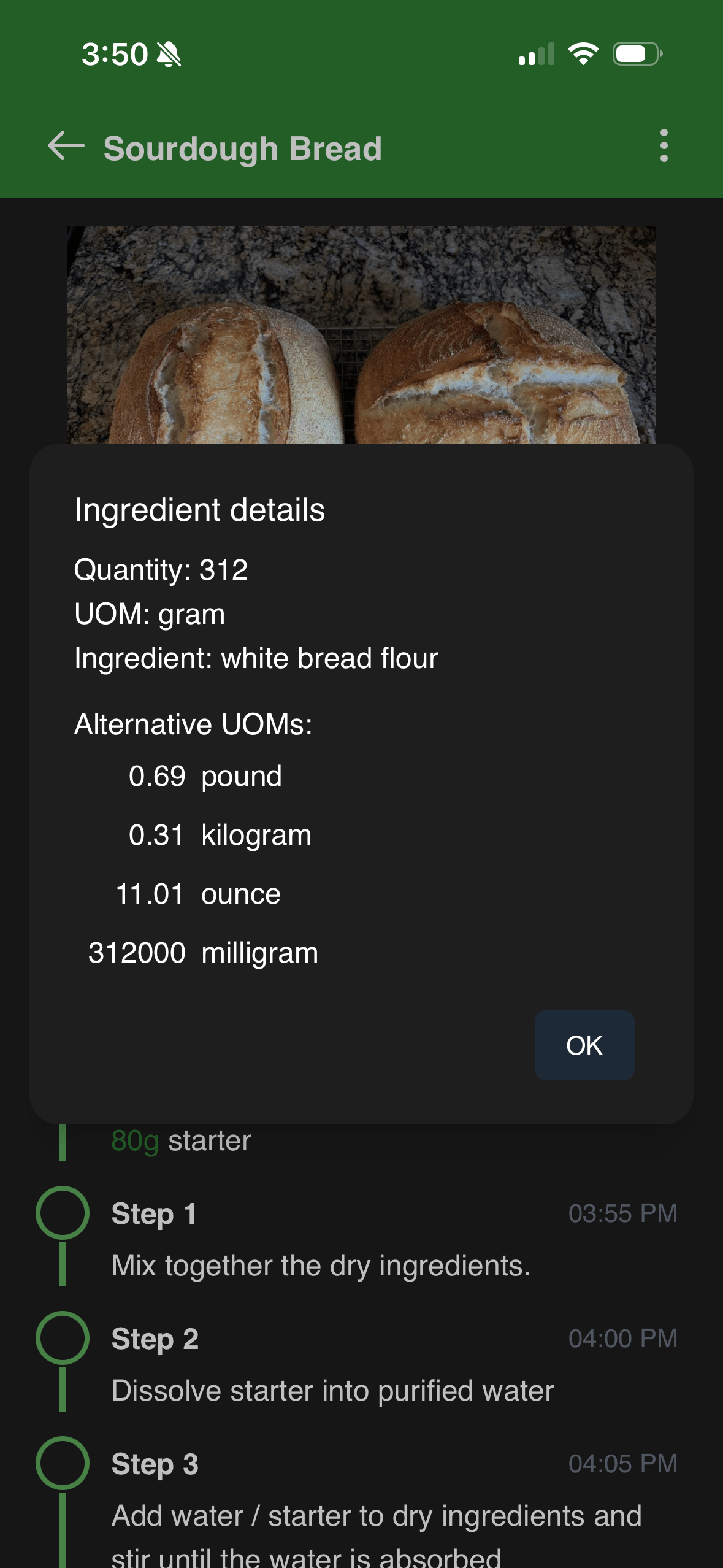
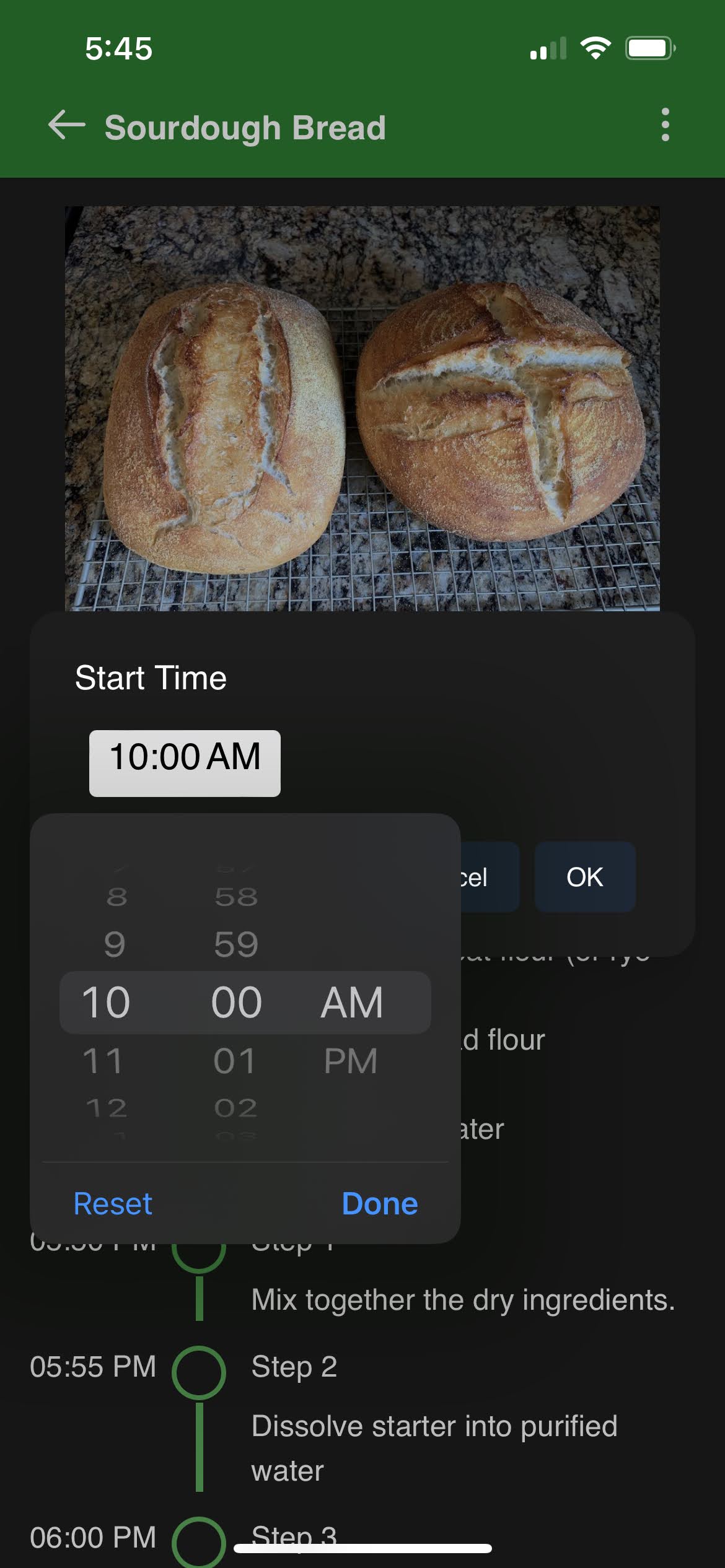
To start cooking later but know exactly when it will be done later, use the start time feature. Just pick when you want to start cooking and Sharp Cooking will calculate all the steps. You can further adjust the interval between steps without time in the Settings page.
Sharp Cooking automatically detects time from natural language in your step text, so you do not need to enter it separately. For example, “Bake for 30 minutes” is read as 30 minutes, and “Rise for 2 hours” is read as 2 hours. Supported units are minutes, hours, and days.
TipSharp Cooking assign 5 minutes by default between steps where time information (e.g. “bake for 30 min”) is not given. You can adjust this time in the Settings page. Note that any value provided is treated as minutes.
➡️
 ➡️
➡️
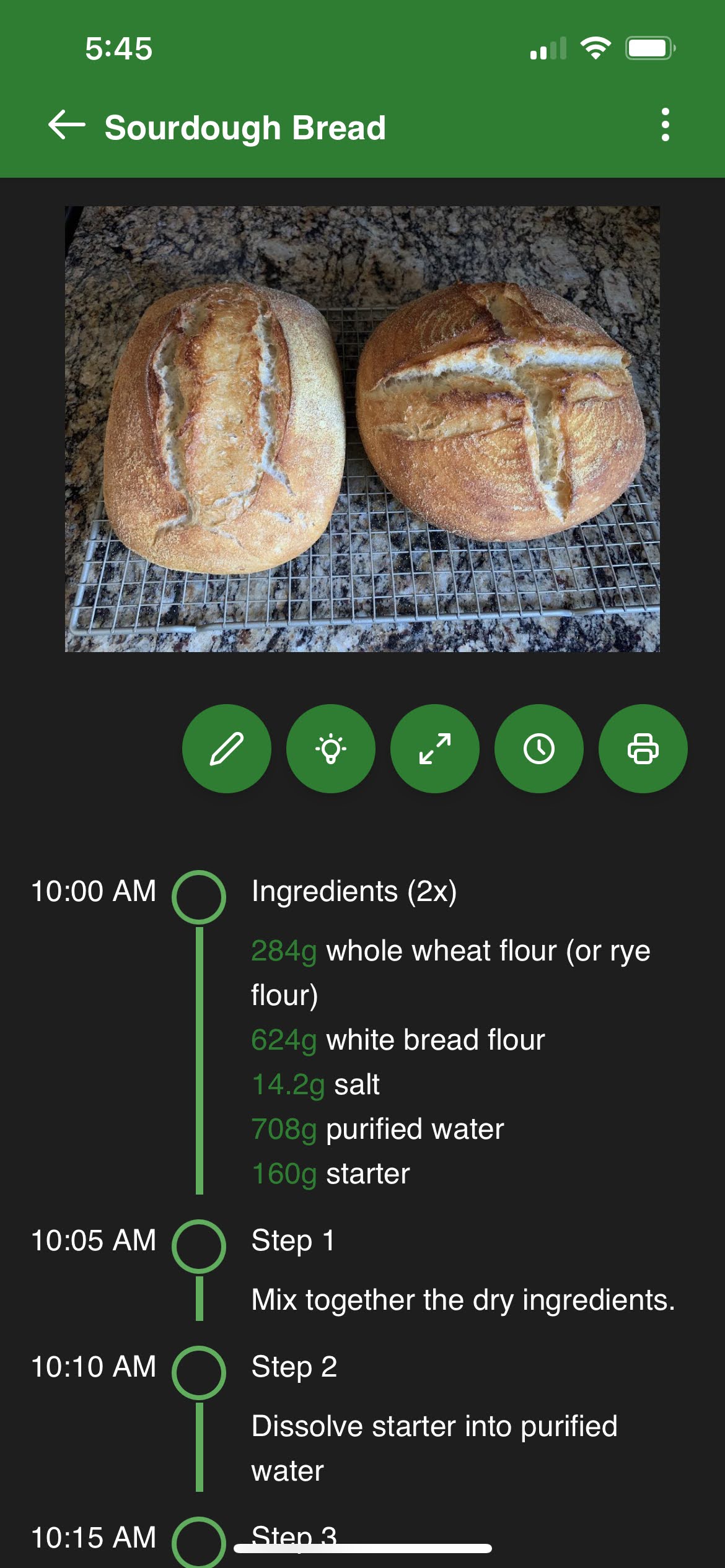
Sometimes you just want to have that recipe in a pice of good old paper. You can now print your recipes directly from Sharp Cooking app.
➡️
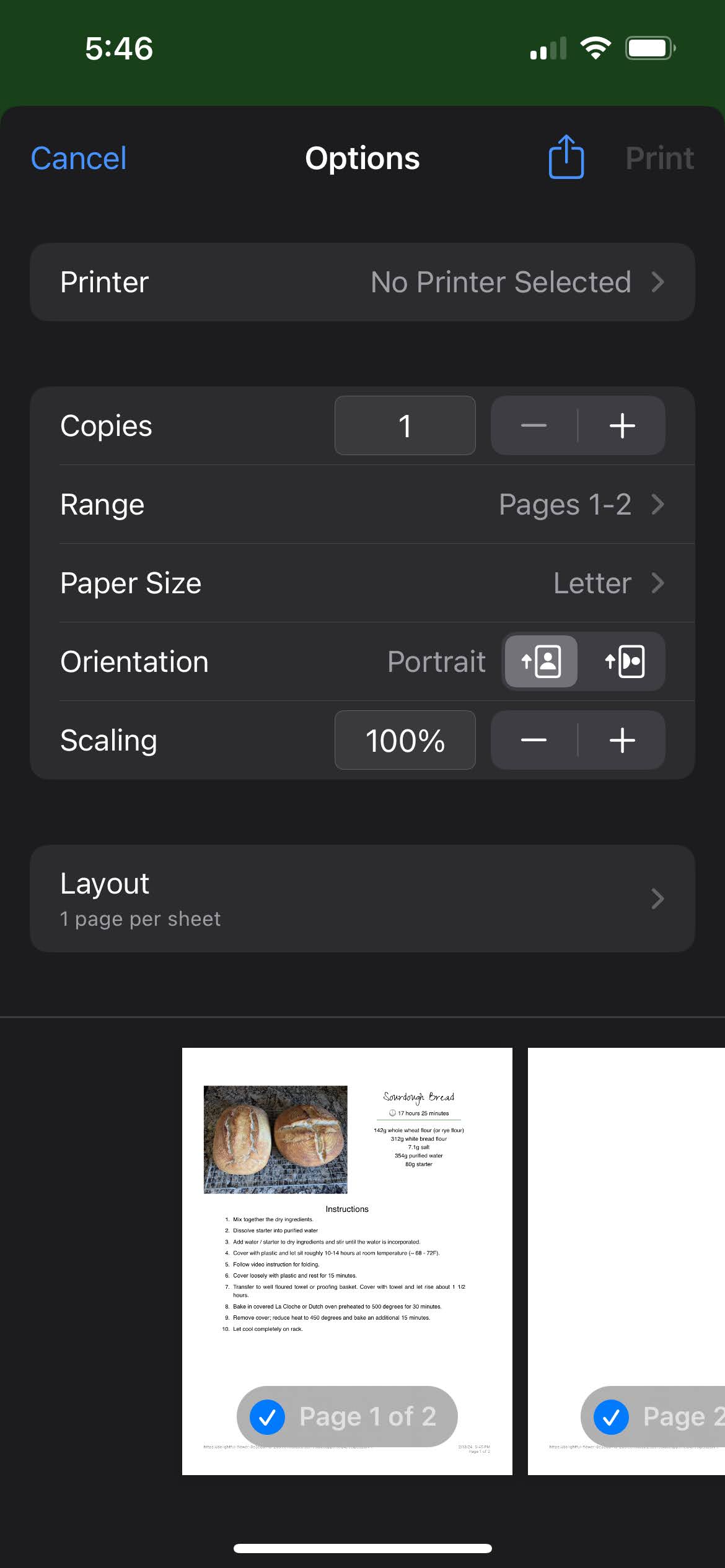
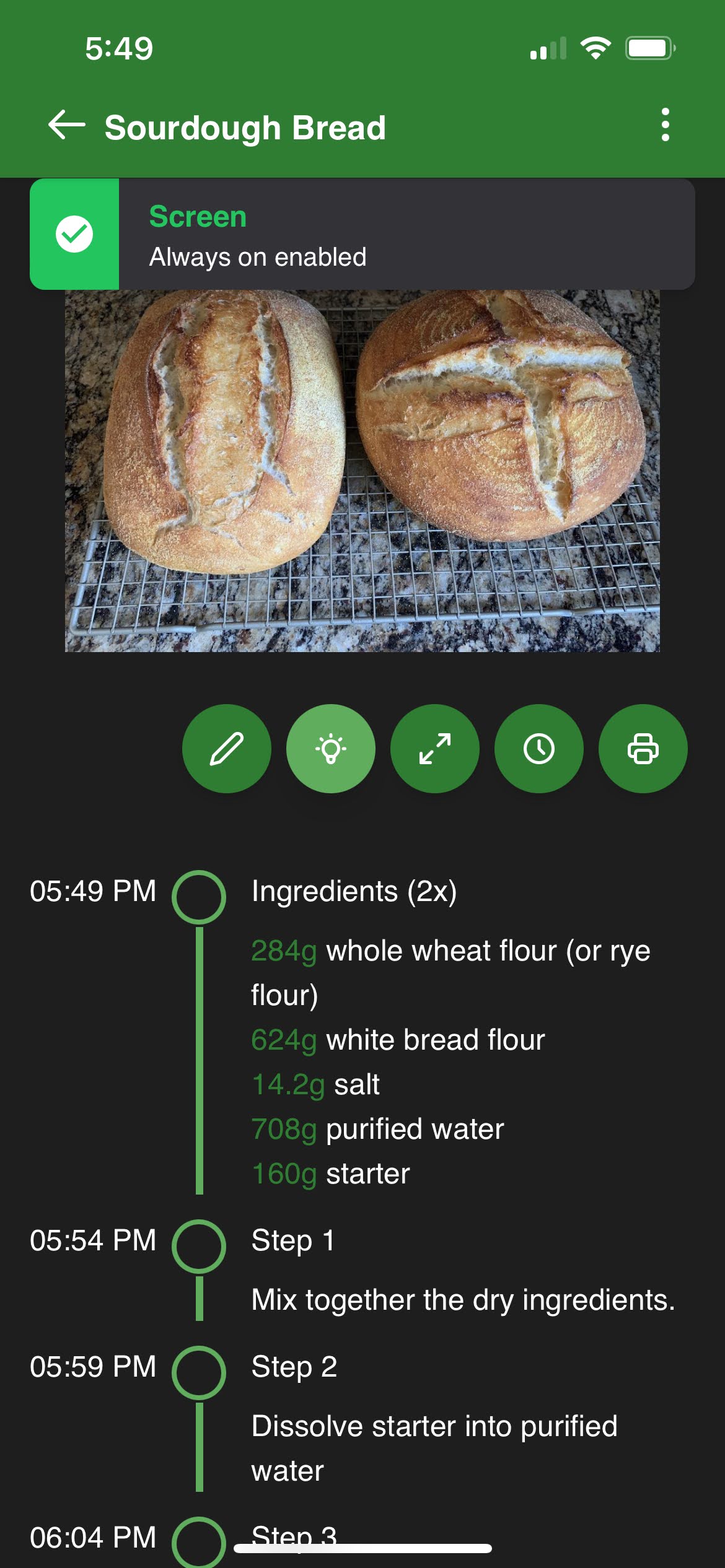
There is nothing more annoying than the phone screen shutting down while you are cooking and have something on your hands. You can now disable the screen lock right from the recipe display.WarningiOS does not provide a builtin API for web applications to prevent the screen lock. As a workaround, Sharp Cooking will play a simple video without audio on a loop. Though the video has no audio, any other playing media will be stopped.
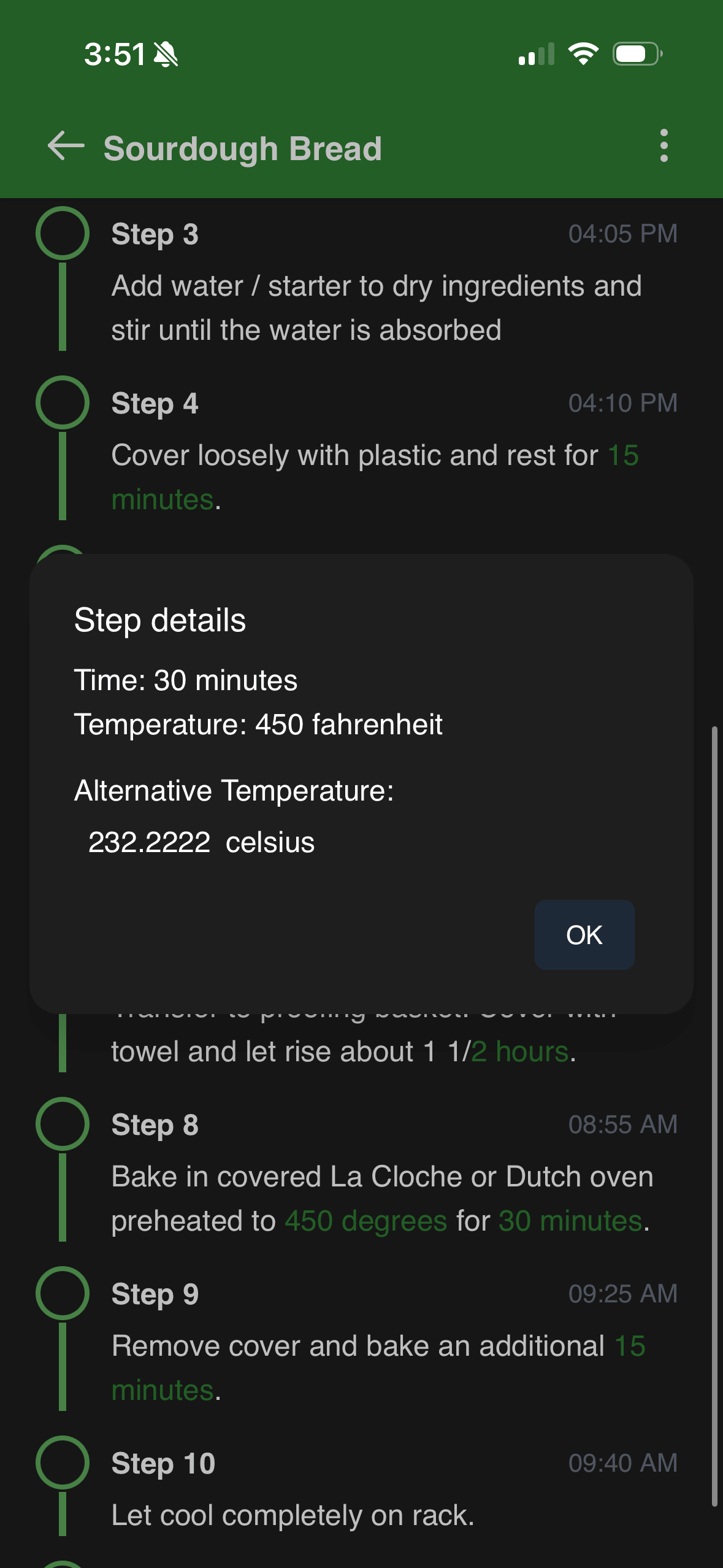
When cooking, tap on any step in the timeline to open a popup with the full step text. This is useful when a step is long and the timeline view is truncated.
If the step contains a temperature (e.g. “Bake at 400°F”), the popup also shows the converted equivalent in the other unit — Fahrenheit steps are shown with the Celsius equivalent and vice versa.
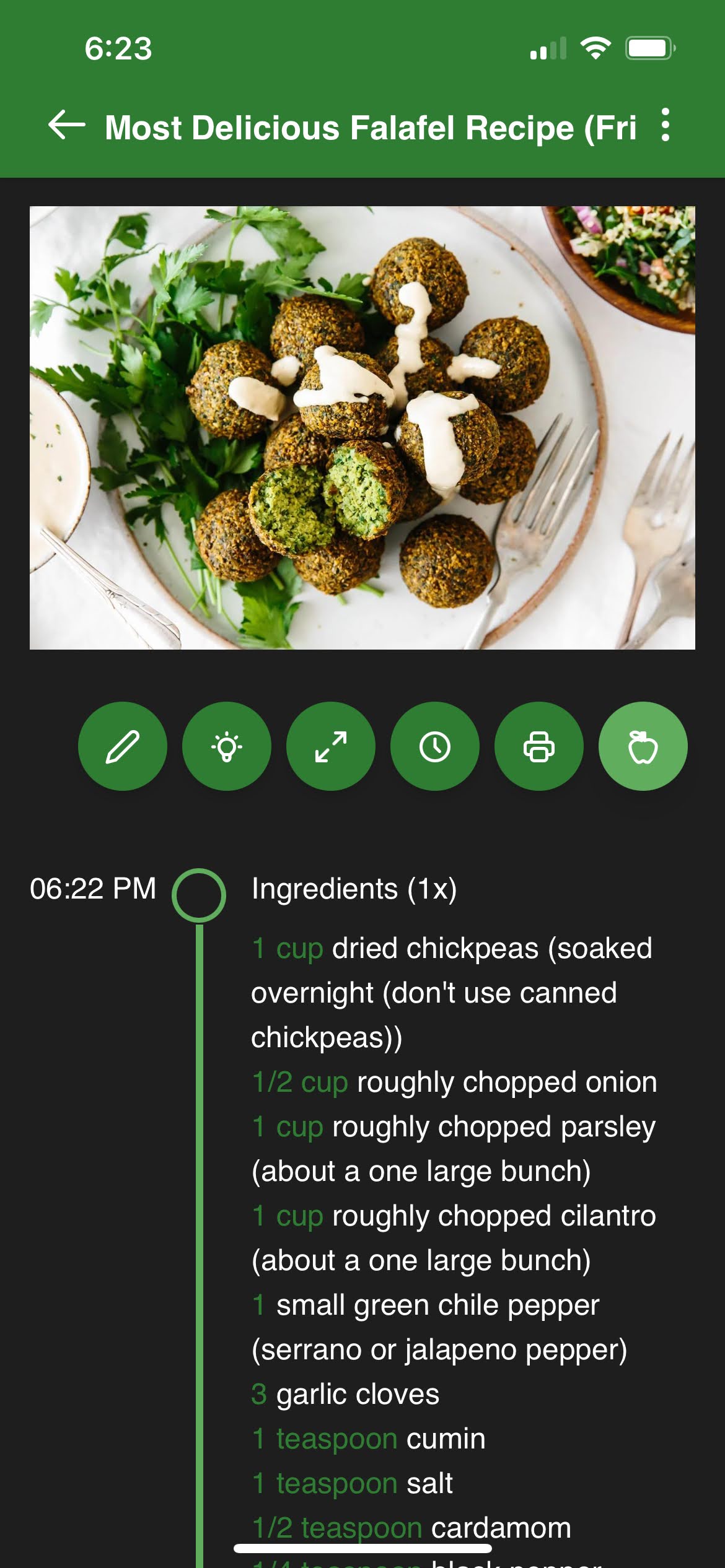
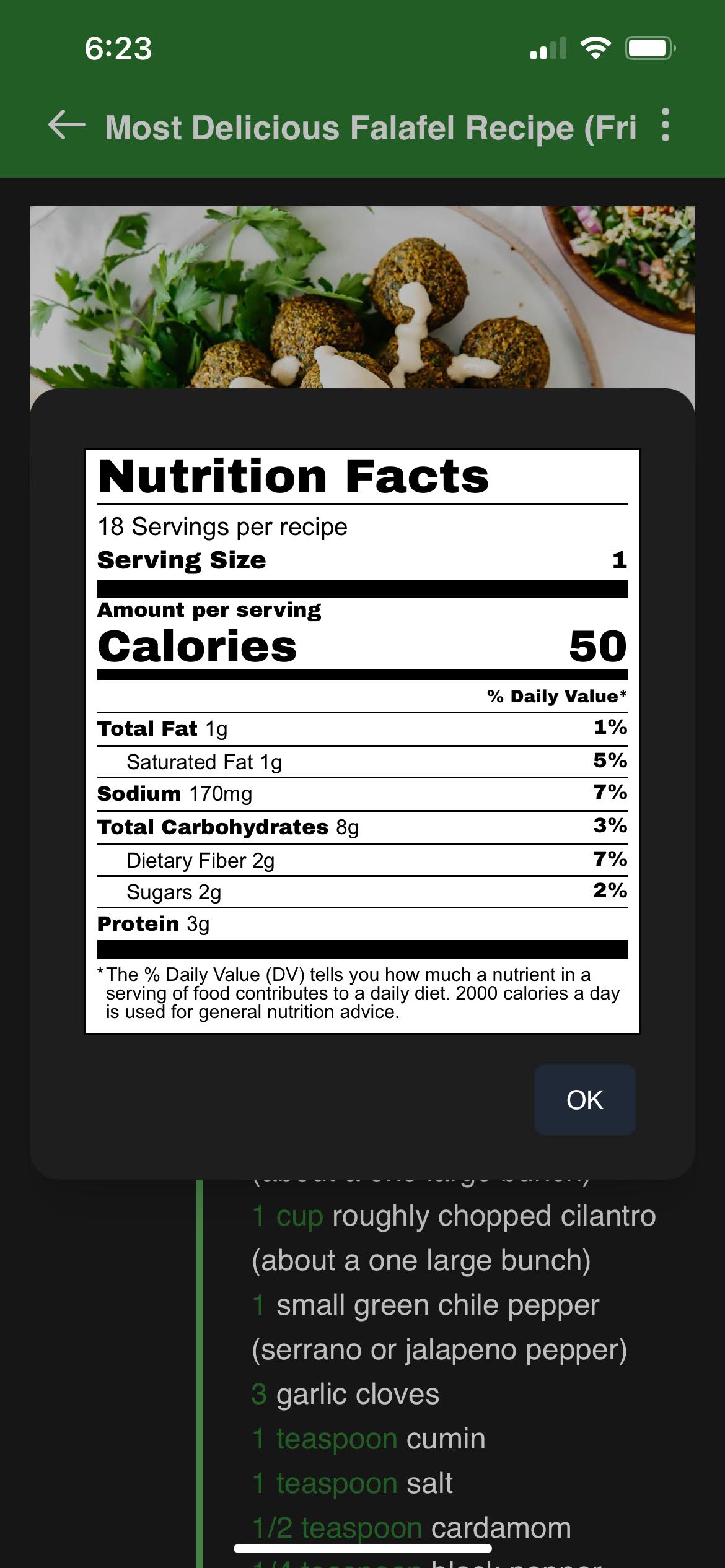
ImportantThe label format and the daily values are based on a 2000 calorie diet as recommended by FDA. While the feature is available anywhere in the planet, the FDA recommended values are used as a reference.
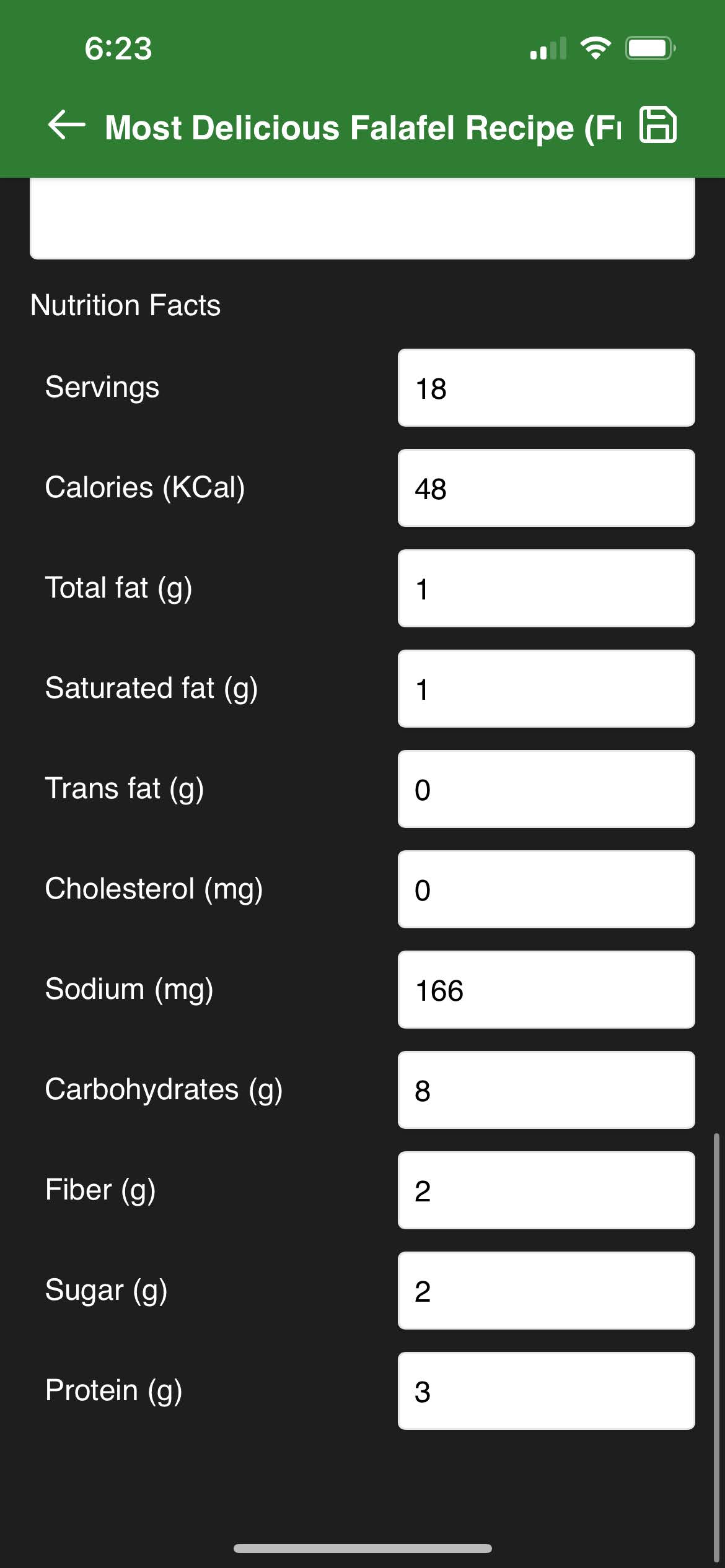
Sharp Cooking can show you the nutrition facts of your recipe. You can import nutrition facts along with your recipes, if available from the source, or add them manually. The nutrition facts will be displayed in the recipe display page.
TipYou can use online nutrition analysers such as the one at verywellfit. Use the generated data to manually add nutrition facts to your recipes.
 ➡️
➡️
To manually add nutrition facts to a recipe, edit the recipe and input the values as whole numbers. You can also use the Generate with AI button to automatically populate nutrition facts using AI — this requires the AI Assistant to be configured in the Preview Features page.